
Finder guide
How to use Finder
Fresh screenshots and simple steps so new users can search creators, read Facebook status, and export outreach lists without guessing the UI.
5 credits per search · sign-in required
1. What is Finder?
Finder is WASL Scout's creator research tool. You type a niche, hashtag, or username once; Finder discovers real TikTok creators, checks Meta / Facebook presence, and highlights people with no Facebook match as outreach candidates for your agency. It never impersonates creators or creates pages on your behalf.
2. Steps
Follow these eight steps in order the first time. After that, jump to any step from the list on the left (or the chips above on mobile).
Step 1
Type a niche in the search bar
Open Finder after you sign in. Type a niche, #hashtag, or @username (for example #beauty). Tap Filters beside the field when you want to refine market and audience. Then press Search creators.
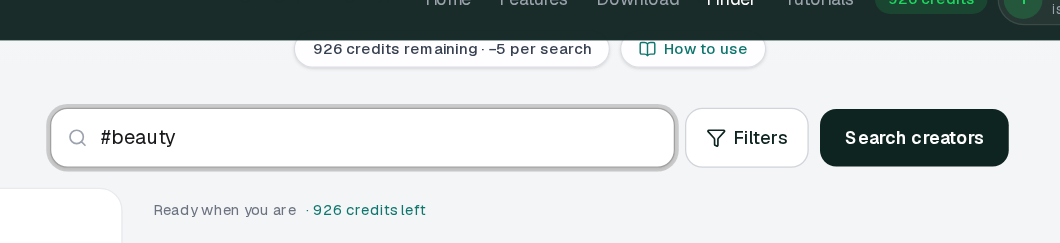
Step 1: Type a niche in the search bar Step 2
Set Filters (optional)
Filters refine Category, Country, Language, Min / Max Followers, and Active Within Days. Keep niches and hashtags in the search bar — filters only tighten market and audience. Missing follower counts stay on the card as “followers not loaded yet”. Facebook is not checked on a niche search until you run Check Meta.
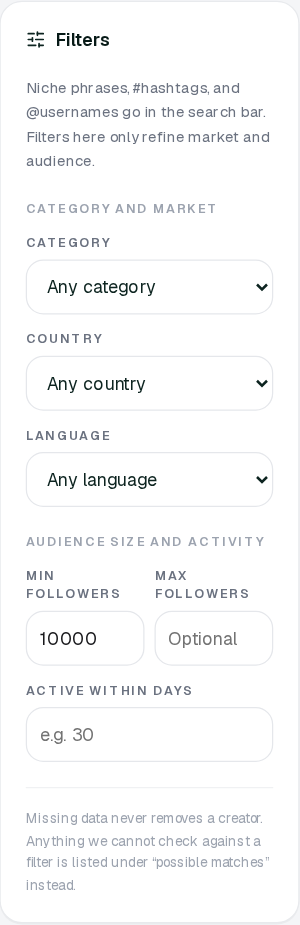
Step 2: Set Filters (optional) Step 3
Read the results list
Each creator card shows followers, market signals, bio, and an FB status badge (for example FB NONE, FB UNKNOWN, FB CONFIRMED, or FB LIKELY). Use the badge to decide outreach vs. a closer look.
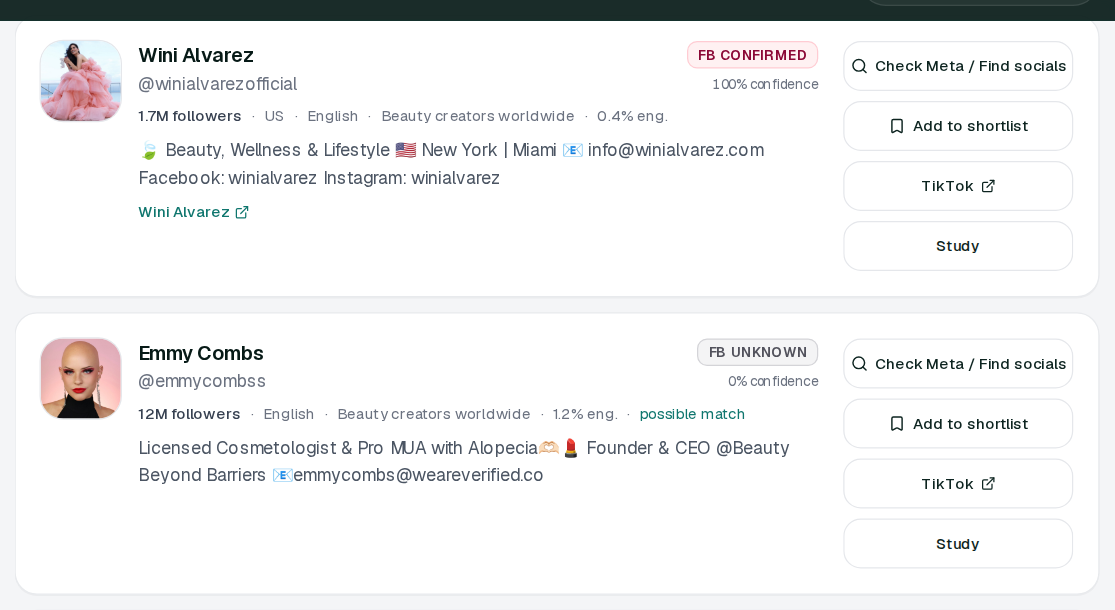
Step 3: Read the results list Step 4
Switch result tabs
Use the tab bar to focus your list: Focus No Facebook (outreach candidates), All results, Review needed (mid-confidence Meta matches), and Shortlist. Start on Focus No Facebook when you want clean outreach leads.

Step 4: Switch result tabs Step 5
Act on a creator card
On any card you can Check Meta / Find socials to re-check Facebook only (0 credits — not another full search), Add to shortlist for later outreach, open TikTok, or Study the profile. Shortlisted creators appear under the Shortlist tab. A violet “previous match” badge means an older Facebook result was kept and was not rechecked in this search.
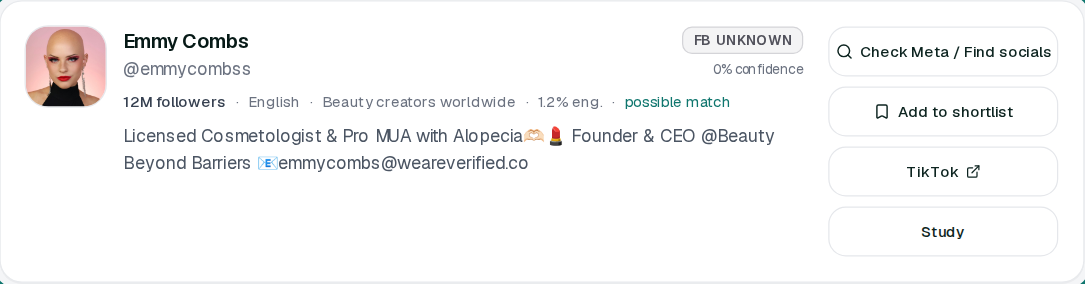
Step 5: Act on a creator card Step 6
Save search and export
Use Save search to keep this query on the device. Export CSV (n) downloads no-Facebook (FB NONE) outreach rows. Export shortlist (n) downloads everyone you bookmarked. Counts update as results and shortlist change.

Step 6: Save search and export Step 7
Use Finder on mobile
On a phone, results stack in a single column. Tap Filters to open the filters drawer, adjust Category / Country / Language / followers, then Apply filters. Your search stays saved when you leave a card and tap Back.
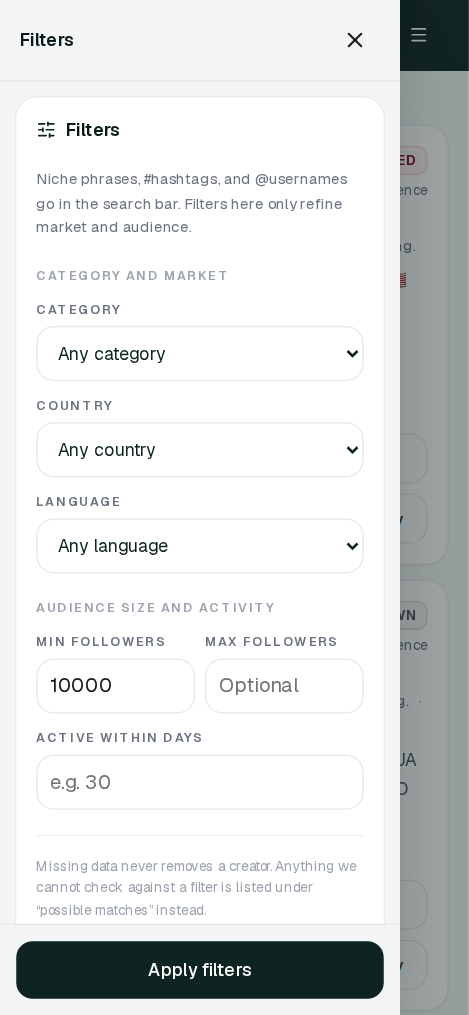
Step 7: Use Finder on mobile Step 8
Credits per search
Each discover search costs 5 credits. Check Meta / Find socials is a Facebook-only recheck and costs 0 credits. The header shows your balance (for example “916 credits”). Under the headline you also see remaining credits and the per-search cost. Top up from the Dashboard if you run low.
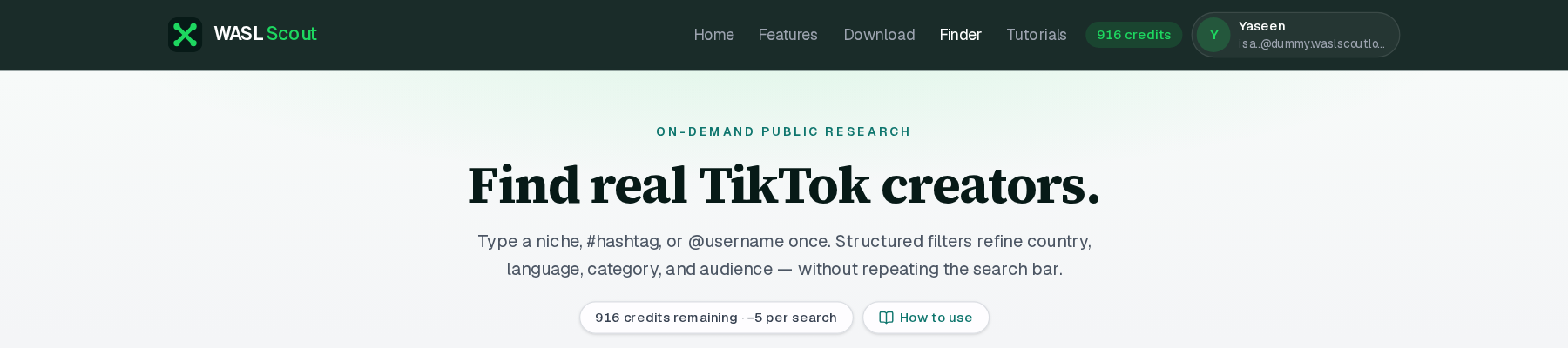
Step 8: Credits per search
3. Quick tips
FB NONE vs FB UNKNOWN
FB NONE means no Facebook match — a strong outreach candidate. FB UNKNOWN means Meta was not checked yet or the signal is incomplete; use Check Meta / Find socials (free, 0 credits) before you decide. “previous match” means an older CONFIRMED or LIKELY result was kept because this search did not recheck Facebook.
Start on Focus No Facebook
The Focus No Facebook tab is built for agency outreach. Switch to All results when you want every creator in the batch, including UNKNOWN and confirmed matches.
Export CSV is for FB NONE only
Export CSV downloads no-Facebook leads. If the count is 0, run Check Meta on UNKNOWN rows, or use Export shortlist for creators you saved by hand.
4. Mobile and coming back
On small screens, cards stack full width and Filters opens a drawer with Apply filters. When you open Study or another detail and press Back, Finder restores your last query, filters, tabs, and scroll position on this device so you do not lose the batch.
Ready to scout
Open Finder, run a niche search, and start on the Focus No Facebook tab for outreach.
Go to Finder